
The official evisa.bj portal is the primary platform for applying for a Benin e-Visa online. This guide walks you through every step of using the portal – from creating your account to downloading your approved visa.
What Is the evisa.bj Portal?
evisa.bj is the government-operated online visa application portal for the Republic of Benin. Launched to simplify the visa process, the portal allows travelers from eligible countries to apply for tourist, business, and transit visas entirely online – no embassy visit required.
The portal is managed by Benin’s Ministry of Interior and handles the full application lifecycle: registration, form submission, document upload, fee payment, and visa delivery. Approved e-Visas are sent as downloadable PDF files to your registered email address.
Key features of the evisa.bj portal include:
- 24/7 availability – apply at any time from anywhere in the world
- Multiple visa types – 30-day, 90-day, and transit options
- Secure payment – credit/debit card processing via encrypted gateway
- Status tracking – check your application progress in real time
- Multilingual interface – available in English and French
Before You Start: What You Need
Before navigating to evisa.bj, gather these documents and information:
| Requirement | Details |
|---|---|
| Valid passport | At least 6 months remaining validity from arrival date |
| Passport scan | Clear color scan of the bio-data page (JPEG or PDF) |
| Passport photo | Recent digital photo, white background, 3.5×4.5 cm |
| Travel itinerary | Flight booking confirmation or travel plan |
| Accommodation proof | Hotel reservation or host invitation letter |
| Email address | Active email for receiving the e-Visa PDF |
| Payment method | Visa, Mastercard, or other accepted card |
Ensure all scanned documents are legible and in the correct file format before starting. Blurry or incomplete uploads are the most common reason for application delays.
Step 1: Access the Portal and Create an Account
Open your browser and navigate to evisa.bj. The homepage displays the portal’s main options. To begin:
- Click “Apply for Visa” or “New Application” on the homepage
- Select your nationality from the dropdown menu
- Choose your visa type (Tourist, Business, or Transit)
- Enter a valid email address – this becomes your login credential
- Create a secure password (minimum 8 characters, including numbers and symbols)
After registration, the portal sends a verification email. Click the confirmation link to activate your account. Without verification, you cannot proceed with the application.
Tip: Use an email address you check regularly. All visa updates, including the final approval, are sent to this address.
Step 2: Complete the Application Form
Once logged in, the portal presents the application form. Fill in every required field accurately:
Personal Information
- Full name (exactly as it appears on your passport)
- Date of birth
- Gender
- Nationality
- Passport number and expiry date
Travel Details
- Intended date of arrival in Benin
- Intended date of departure
- Purpose of visit
- Port of entry (Cotonou Cadjehoun Airport is the most common)
- Accommodation address in Benin
Contact Information
- Phone number with country code
- Emergency contact name and number
Critical: Double-check your passport number and date of birth. Even a single digit error can result in visa rejection or problems at the border.
Step 3: Upload Required Documents
The portal requires digital copies of your documents. Follow these specifications:
- Passport bio-data page: Color scan, JPEG or PDF, maximum 2 MB
- Passport photo: Recent photo with white background, JPEG format
- Supporting documents: Hotel booking, flight itinerary, or invitation letter
Click “Upload” next to each document field and select the file from your device. The portal displays a preview after upload – verify that the image is clear and all text is readable.
If a document is rejected, the portal displays an error message explaining the issue. Common problems include file size exceeding the limit, incorrect format, or poor image quality.
Step 4: Pay the Visa Fee
After completing the form and uploading documents, the portal calculates your visa fee based on the selected visa type and duration:
| Visa Type | Duration | Fee (USD) |
|---|---|---|
| Tourist e-Visa | 30 days single entry | $50 |
| Tourist e-Visa | 90 days multiple entry | $100 |
| Business e-Visa | 30 days | $75 |
| Transit e-Visa | 7 days | $30 |
Click “Proceed to Payment” to access the secure payment gateway. The portal accepts Visa and Mastercard. Enter your card details and confirm the payment.
The portal processes payment immediately. If successful, you receive a confirmation screen and email. If payment fails, try a different card or contact your bank to authorize the transaction.
Note: Fees are non-refundable even if the application is denied. Verify all information before paying.
Step 5: Track Your Application Status
After payment, your application enters the review queue. Track its progress through the portal:
- Log in to evisa.bj with your email and password
- Navigate to “My Applications” or “Application Status”
- Your application appears with one of these statuses:
| Status | Meaning |
|---|---|
| Submitted | Application received, awaiting review |
| Under Review | Immigration officer is processing your application |
| Additional Documents Required | You need to upload extra documents |
| Approved | Visa granted – download your e-Visa PDF |
| Rejected | Application denied – see reason provided |
Processing typically takes 48 to 72 hours for standard applications. During peak travel seasons, processing may take up to 5 business days.
If the status shows “Additional Documents Required,” log in immediately and upload the requested files. Failure to respond within the given timeframe may result in automatic rejection.
Step 6: Download and Print Your e-Visa
Once approved, the portal displays a “Download Visa” button. Click it to save the e-Visa PDF to your device.
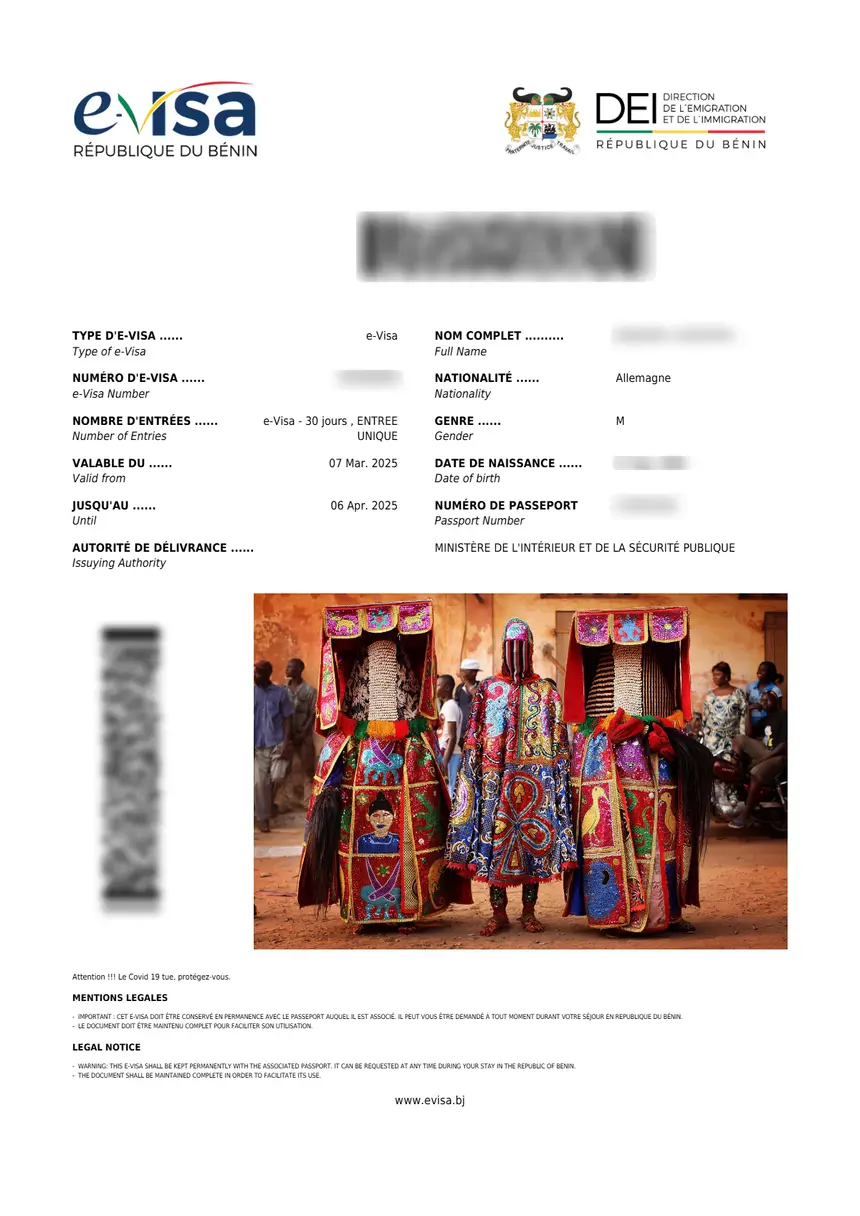
The PDF contains:
- Your full name and passport number
- Visa type and validity period
- QR code for border verification
- Unique visa reference number
Print at least two copies of the e-Visa. Carry one copy with your passport and keep a backup in your luggage. Border officers at Cotonou Cadjehoun Airport scan the QR code to verify your visa electronically.
You can also access your approved visa at any time by logging back into the portal and visiting “My Applications.”
Common Problems on evisa.bj and How to Fix Them
Application Form Not Loading
Clear your browser cache and cookies, then try again. The portal works best on Chrome, Firefox, or Safari. Disable VPN connections if the page fails to load.
Document Upload Failing
Reduce the file size to below 2 MB. Use an online image compressor if needed. Ensure the file format is JPEG or PDF – PNG and TIFF are not accepted.
Payment Declined
Contact your bank to authorize international transactions. Some banks block payments to Benin by default. Alternatively, try a different card.
No Confirmation Email
Check your spam or junk folder. If the email is not there, log in to the portal and resend the confirmation from your account settings.
Application Stuck on “Under Review”
Standard processing takes 48-72 hours. If your application has been under review for more than 5 business days, contact the portal’s support team via the help section on evisa.bj.
Tips for a Smooth evisa.bj Experience
- Apply at least 2 weeks before travel – this leaves room for processing delays and any required document corrections
- Use a desktop or laptop computer – the portal’s document upload feature works more reliably on larger screens
- Keep your login credentials safe – you will need them to check status and download the visa
- Save screenshots of each step – useful as backup evidence if technical issues arise
- Verify passport validity – your passport must be valid for at least 6 months beyond your planned entry date
- Use a stable internet connection – interrupted connections during form submission can cause data loss
Frequently Asked Questions About the evisa.bj Portal
Is evisa.bj the only way to get a Benin visa?
No. You can also apply for a visa at a Benin embassy or consulate. However, the evisa.bj portal is the fastest and most convenient option for eligible nationalities.
Can I apply for someone else on evisa.bj?
Yes. You can submit an application on behalf of another person by entering their details in the form. Use your own email address to manage the application, but the applicant’s passport information must be accurate.
What happens if my application is rejected?
The portal displays the reason for rejection. You can correct the issue and submit a new application. The visa fee from the rejected application is not refunded.
Can I extend my Benin e-Visa through evisa.bj?
No. Visa extensions must be processed through the immigration office in Benin. Visit the Direction de l’Emigration et de l’Immigration in Cotonou to request an extension before your visa expires.
Is my payment information safe on evisa.bj?
Yes. The portal uses SSL encryption and processes payments through a secure gateway. Your card details are not stored on the portal’s servers.
Do I need to print my e-Visa?
Yes. While border officers can verify your visa electronically using the QR code, carrying a printed copy is strongly recommended. Some airlines require a printed e-Visa before allowing boarding.
What file formats does evisa.bj accept for document uploads?
The portal accepts JPEG and PDF formats. Maximum file size is 2 MB per document. PNG, TIFF, and other formats are not supported.